

Pay Cat Toolbox · Employee Updater
Update employee details from a Google Sheet.
Pull just the employee fields you need into a sheet, change them in the cells, then update the employees from the same place. A Log tab shows the result for each one.
A result for each employee in the Log tab
$2 per active employee per month, added to your Pay Cat Payroll plan. No new contract.
Not on Pay Cat Payroll yet? Book a demo
.png "Employee Updater - Hero Image (spreadsheet)")
Why is changing employee details hard to keep track of?
An employee record holds a lot of fields, and it helps to see who you changed and what happened.
An employee record has many fields
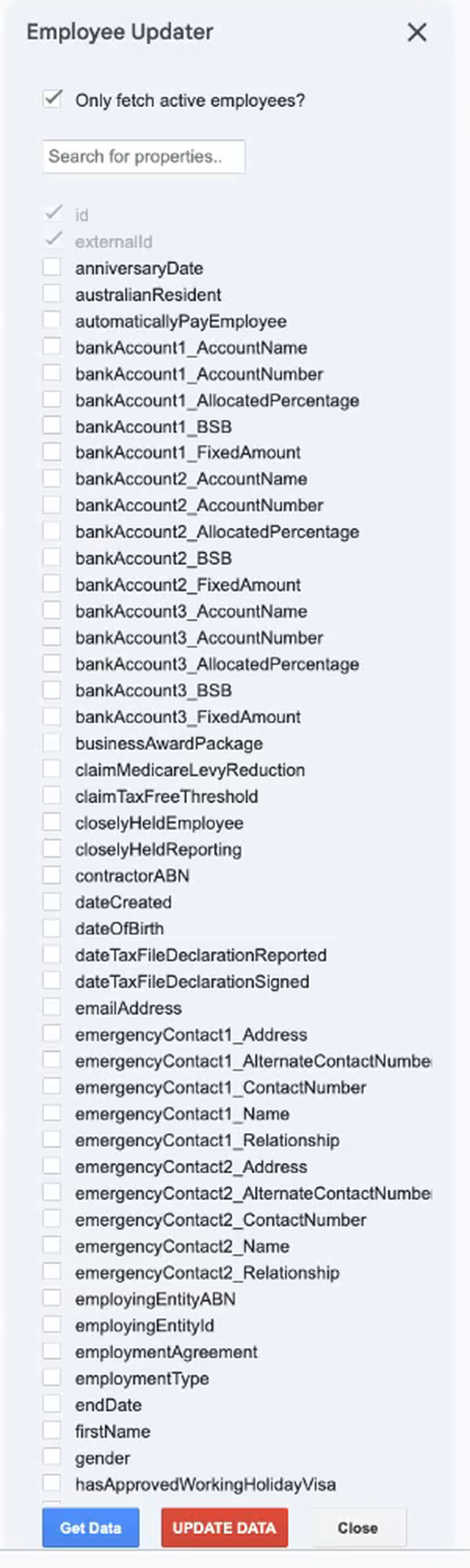
The field list in the demo runs from address and contact details to pay, tax and super fund fields. A search box and tick boxes let you pull only the ones you need.
You need to see who you are editing
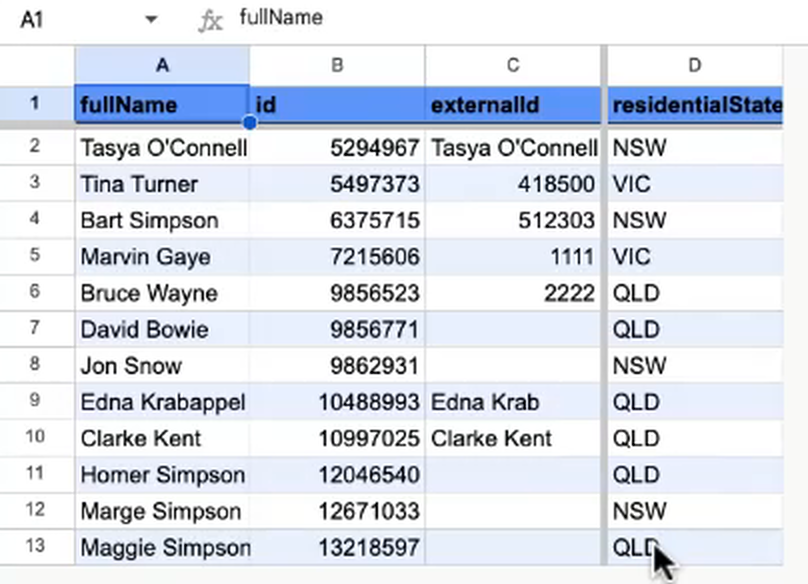
Each employee gets a row, with their name, ID and external ID beside the fields you ticked.
You want a record of the result
After an update, a Log tab lists every employee with a status, such as No change needed or Successfully updated.
Toolbox puts the fields in a sheet and a log of the result beside them.
See it in action
Watch the Employee Updater change one employee's details
A short video, about a minute. Tick a field, get the data, change a cell and read the Log tab.
How does the Employee Updater work?
Five steps. You only connect once.
1
Connect once
Install Toolbox in Google Sheets and paste in your Pay Cat Payroll API key. That's the most technical it gets.
2
Open the sidebar
Go to Extensions, then the Toolbox menu, then Employee, then Employee Updater, and click Open. An Employee Updater sidebar opens on the right.
3
Pick the fields
Only fetch active employees? starts ticked, and ID and external ID are already ticked and greyed out. Tick the other fields you want, then click Get Data.
4
Edit the cells
A Fetching Employee Data message shows, then Employee Data Ready. An Employee Updater: Data tab lists one employee per row. Change a value in its cell.
5
Update and read the log
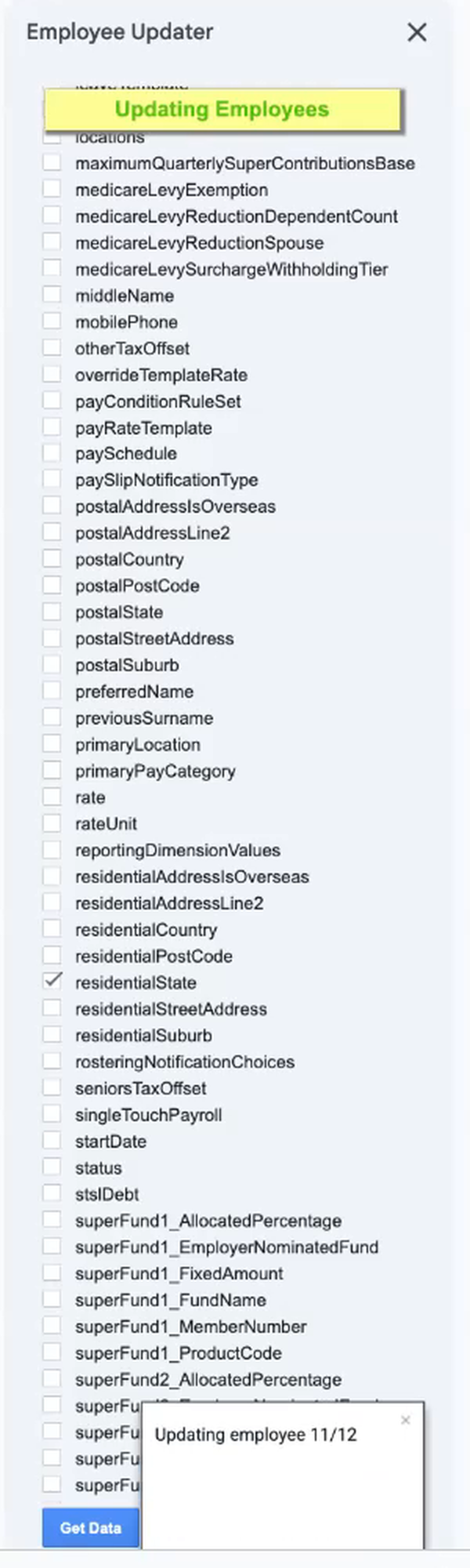
Click UPDATE DATA. An Updating Employees message shows, and an Employee Updater: Log tab lists a status for each employee.
What goes in, and what comes out?
You choose the employee details to pull into your sheet. Two tabs show what comes back.
What you can pull into the sheet
The sidebar lists these employee details. Tick the ones you need, or search the list.
Personal details
First, middle and preferred name, previous surname, date of birth and gender.
Contact and addresses
Email, home and mobile phone, and residential and postal addresses.
Emergency contacts
Two emergency contacts, each with a name, relationship, phone numbers and address.
Employment
Job title, employment type, start and end date, status, hours per day and week, locations and employing entity.
Pay setup
Rate and rate unit, pay rate template, pay schedule, primary pay category and pay condition rule set.
Leave setup
Leave template, leave year start and leave accrual start date type.
Tax
Tax file declaration dates, tax-free threshold, and Medicare levy and tax offset fields.
Super funds
Two super funds, each with a fund name, member number, product code and allocation.
Bank accounts
Three bank accounts, each with an account name, number, BSB and allocation.
Grouped from the field list in the demo. The demo ticks one field, residential state.
What comes back: the Data tab
One row for each employee, with their name, ID and external ID, then a column for each field you ticked. This is the tab you edit.
What comes back: the Log tab
A row for each employee with a status, such as No change needed or Successfully updated.
An example from the demo
✓The demo ticks residential state and clicks Get Data. The Employee Updater: Data tab shows 12 employees, with their name, ID, external ID and state.
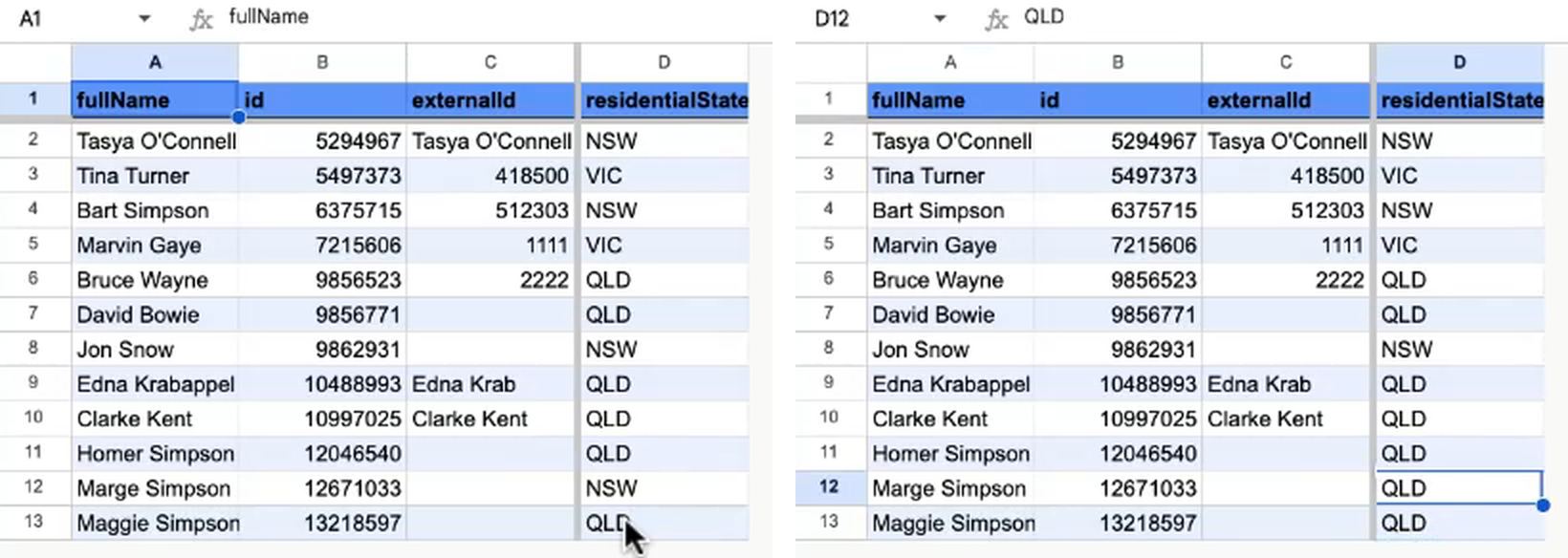
✓Marge Simpson's state reads NSW. The demo changes that cell to QLD, then clicks UPDATE DATA.
✓The Employee Updater: Log tab shows Successfully updated for Marge Simpson and No change needed for the other 11 employees.
What do the sidebar, the sheet and the log look like?
The field list, the Data tab, an edit, and the Log tab it ends with.
The Employee Updater sidebar
The Employee Updater: Data tab
Changing a cell: Marge Simpson from NSW to QLD
While UPDATE DATA runs
The Employee Updater: Log tab
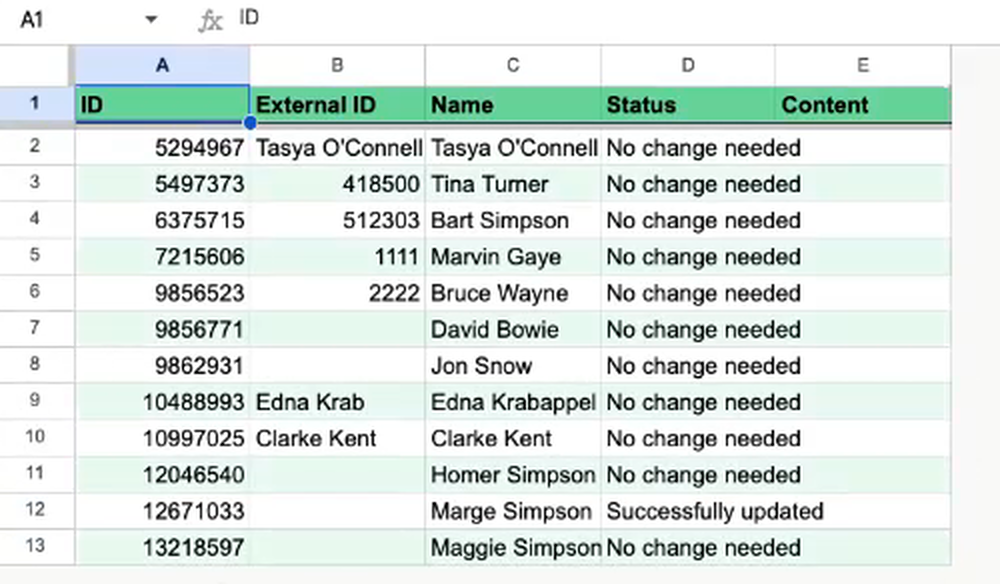
The tabs Toolbox adds

Sample data from a test business file.
Already using Pay Cat?
Toolbox is ready to install. No demo, no waiting.
I'm a Pay Cat customer, take me to the Pay Cat Toolbox!What does it cost?
$2
per active employee per month
A provider with 40 active employees pays $80 a month on top of
their Pay Cat Payroll plan.
✓Added to your existing Pay Cat Payroll plan, with no new contract
✓Billed like Pay Cat Payroll: only for employees active that month
✓Includes every Toolbox report, including the portable long service leave report
✓New reports are added at no extra cost
Free webinar · Thursday 22 October 2026, 12pm AEDT
See Toolbox run live, all nine tools
Tasya, our Head Trainer, runs every Toolbox tool, including the salaried hours report, on a real business file. Live Q&A included. Can't make it? Register anyway and we'll send the recording.
Questions people ask before turning Toolbox on
It puts the employee fields you choose into a Google Sheet, so you can change the cells and click UPDATE DATA. Toolbox adds two tabs to your sheet: Employee Updater: Data and Employee Updater: Log.
Go to Extensions, then the Toolbox menu, then Employee, then Employee Updater, and click Open. An Employee Updater sidebar opens on the right.
Tick the fields you want in the sidebar list, or use the Search for properties box. ID and external ID are already ticked and greyed out, and Only fetch active employees? starts ticked. Then click Get Data.
One row for each employee, with fullName, id and externalId columns, then a column for each field you ticked. In the demo, the extra column is residentialState.
Clicking Get Data shows Fetching Employee Data, then Employee Data Ready. Clicking UPDATE DATA shows Updating Employees, with a pop-up such as Updating employee 11/12.
Pay Cat Payroll with Toolbox is $11 per employee, per month. That covers the payroll platform and all nine Toolbox tools, Employee Updater through to the SCHADS 5-Week Annual Leave Assessment. There is no separate fee per tool.
Already on Pay Cat Payroll? Adding Toolbox is an extra $2 per employee, per month, taking your subscription from $9 to $11.
Toolbox is charged on your active employee count, the same basis as your Pay Cat Payroll subscription, and it is only available to Pay Cat customers with an active API key. See our pricing page for the full breakdown and exact terms.
Yes. Toolbox connects to your existing Pay Cat business file through your Pay Cat API key, so you'll need an active Pay Cat account with API access before you can set it up. If you're not yet a customer, book a demo and we'll show you how it fits in.
Install the app and click the link under "support" to access the set-up guide. Got questions? Reach out to support.
Yes, but a free Gmail account is enough, you don't need a paid Google Workspace subscription. Toolbox is a Google Sheets™ extension, so you'll need a Google account to install it and run it in a Google Sheet.
No. Everything runs from menus inside Google Sheets. If your team is comfortable in a spreadsheet, they're already comfortable in Toolbox.
No. Toolbox is built for Google Sheets only, not Excel. Once you've generated a report, though, Google Sheets can export it straight to XLSX format if you need the file in Excel.
Ready to get Toolbox working for your team?
Two ways in, depending on where you are with Pay Cat.
Already with Pay Cat
Add Toolbox to my accountNo demo needed. Install straight from the Google Workspace Marketplace.
New to Pay Cat
Book a demoSee Toolbox running against a real business file, alongside the rest of Pay Cat.