
Hello visitor! You can choose another country or region to see content specific to your location by clicking here.
Pay Cat created the Pay Cat Toolbox Google Sheets™ extension to make common Pay Cat payroll, reporting, timesheet, accounting, redundancy, and Portable Long Service Leave workflows easier to run from a spreadsheet.
This tool can be used to:
- Update employee details in Pay Cat from a Google Sheet™
- Prepare source timesheets in a Pay Cat-ready format
- Generate salaried hours and classification reports
- Run file reviewer checks before implementation or payroll processing
- Generate redundancy worksheets
- Generate wage accrual reports for accounting
- Generate Portable Long Service Leave reports and supporting worksheets
- Assess SCHADS employees for 5-week annual leave eligibility
- Generate travel time timesheets during eligible gaps
- De-Overlap existing passive and active timesheets
Before you begin:
You will need to have already installed the Google Sheets™ extension. You will also need an Pay Cat API key with access to the relevant business file.
Instructions:
1. Open any Google Sheet™ and go to Extensions > Pay Cat Toolbox.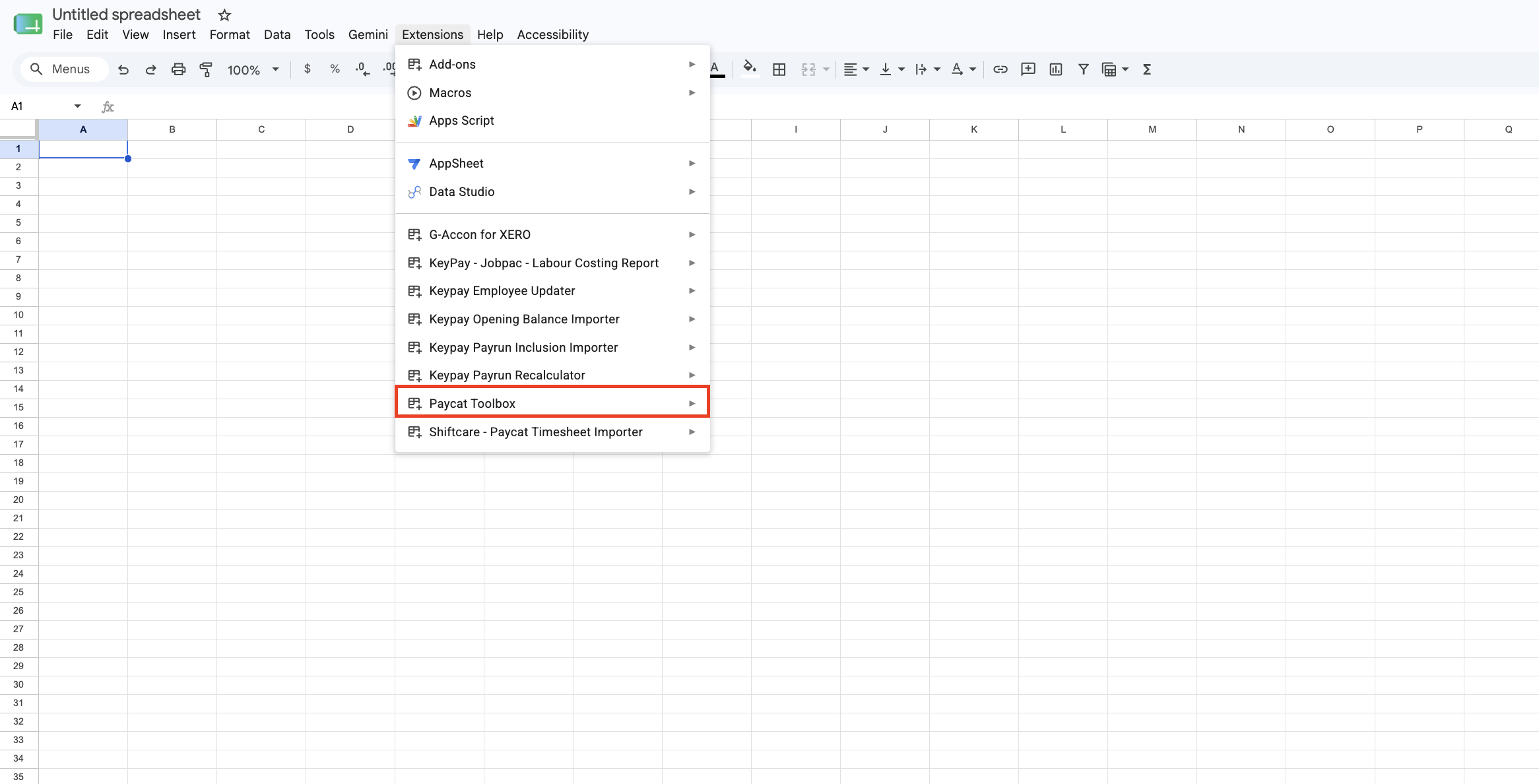
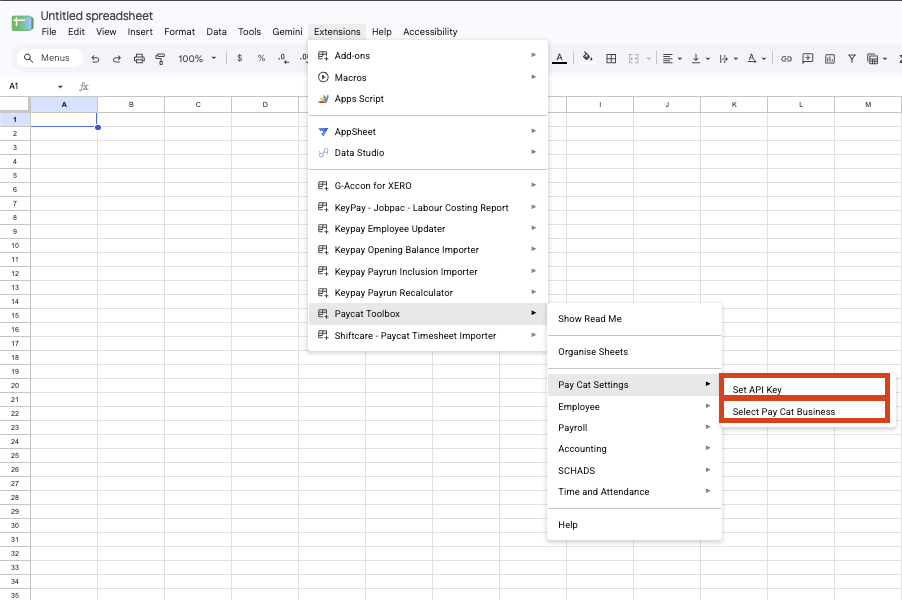
2. Enter your Pay Cat API key and select the relevant business file through the Pay Cat Settings menu.
Go to Extensions > Pay Cat Toolbox > Pay Cat Settings > Set API Key and paste your API key into the prompt.
Go to Extensions > Pay Cat Toolbox > Pay Cat Settings > Select Pay Cat Business and select the business you want to use.
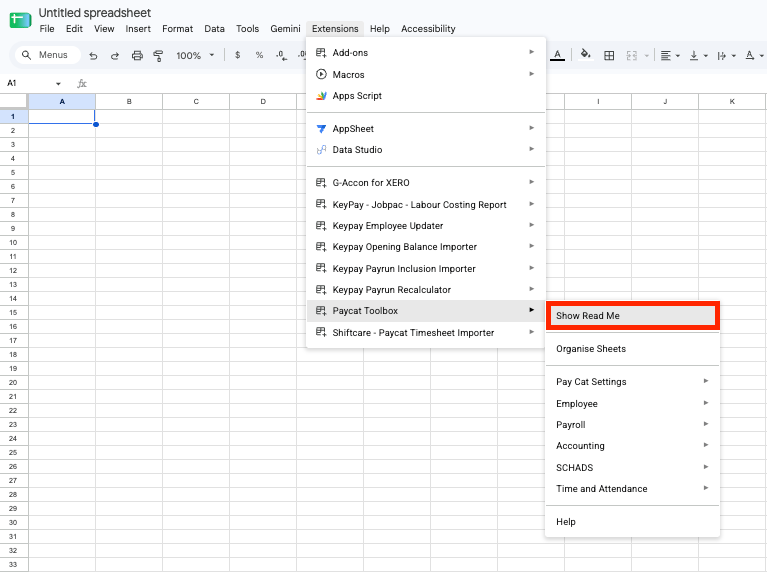
3. If you want to see the available toolbox options from inside the sheet, open the built-in read me.
Go to Extensions > Pay Cat Toolbox > Show Read Me.
4. Select the toolbox item you want to run from the menu. The main menu sections are:
What it does: Quickly and easily drop your employees into a Google Sheets™, make bulk record changes, and push those changes back into Pay Cat without leaving the spreadsheet. This avoids the common export and re-import issues that come with manual bulk updates.
1. To update employee details, go to Extensions > Pay Cat Toolbox > Employee > Employee Updater > Open.
2. Select whether to list active employees only, tick the employee fields you want to include, and click Get Data.
This will create an Employee Updater: Data tab. Update the values in that tab, then click Update Data from the Employee Updater sidebar.
Employee Updater: Log tab after the update finishes.
Note:
If the selected Pay Cat business appears to be connected to an Employment Hero HR file, the Employee Updater will show a warning before fetching or updating employee data. In that case, employee profiles should usually be managed in Employment Hero HR because HR is the source of truth.
What it does: Takes a range of generic timesheet formats and reshapes them into Pay Cat import-ready timesheets, saving hours of manual work. It includes error handling for issues such as overlapping shifts and handles common scenarios like sleepovers and kilometre shifts, which is especially useful when using a CRM without a dedicated Pay Cat integration.
1. To prepare timesheets, go toExtensions > Pay Cat Toolbox > Time and Attendance > Timesheet Shaper > Create source sheet.This will create the sheet Timesheet Shaper: Source Timesheets. Paste your timesheets for shaping into this sheet.
2. If needed, go to Extensions > Pay Cat Toolbox > Time and Attendance > Timesheet Shaper > Show source sheet instructions.
3. Go to Extensions > Pay Cat Toolbox > Time and Attendance > Timesheet Shaper > Map columns for active sheet.
Here you can map your source columns to the relevant Pay Cat fields. The minimum required fields are:
4. If the timesheets include kilometres or sleepovers, go to Extensions > Pay Cat Toolbox > Time and Attendance > Timesheet Shaper > Settings.
5. Go to Extensions > Pay Cat Toolbox > Time and Attendance > Timesheet Shaper > Generate Import.
This will create a Timesheet Shaper: Pay Cat Import tab containing the formatted timesheets and any issue flags.
6. Once there are no issues, use the shaped timesheets and import them to Pay Cat using the custom file upload method.
Note:
Review the import tab before importing or posting timesheets. Fix any rows with issues in the source data, then reshape the sheet again.
What it does: Breaks salaried employees down into salary hours, leave, and leave without pay, then compares those figures to contracted hours. This is useful for exception reporting where salaried staff are rostered onto participant shifts.
1. To generate a salaried hours report, go toExtensions > Pay Cat Toolbox > Payroll > Salaried Hours Report > Generate Report.What it does: Shows how many hours and days an employee has spent at a particular classification. This helps identify when employees may need to graduate between levels and pay points that require total hours worked, such as SCHADS Level 1 Pay Point 1 to Pay Point 2.
1. To run the classification report, go toExtensions > Pay Cat Toolbox > SCHADS > Classification Report > Generate Report.The toolbox will create a Classification: Report tab and, where relevant, a Classification: Diagnostics tab.
What it does: Reviews a Paycat business file and highlights setup risks before you run payroll or complete an implementation. It produces a summary plus detailed result tabs for common red flags, helping you know what to fix before those issues become pay run problems.
1. To run the file reviewer, go to Extensions > Pay Cat Toolbox > Payroll > File Reviewer > Review File.
2. Select the review areas you want included, then click Review File.
3. Review the File Review: Summary tab first, then work through any File Review: Results tabs that were created.
4. Fix any failed or please-review items in Pay Cat. You can open the links provided in the File Review Summary tab to make the relevant adjustments, then run the review again if needed.
What it does: Automatically calculates redundancy payments based on employee age, tenure, and the termination circumstances you enter. It helps calculate ATO reporting, tax, and super treatment, and pre-populates details from the employee record.
1. To generate a redundancy template, go to Extensions > Pay Cat Toolbox > Payroll > Redundancy Template > Generate Template.
2. Select the financial year, confirm whether notice has been provided, enter the severance weeks, enter any other genuine redundancy payment amount, then select the employee.
Extensions > Pay Cat Toolbox > Payroll > Redundancy Template > Generate HR Worksheet.What it does: Calculates the true value of unpaid wages at the end of a month or year for reporting purposes. It includes accurate timesheet costings and pro-rated salaries so period-end accounting journals can be posted more efficiently.
1. To generate a wage accrual report, go to Extensions > Pay Cat Toolbox > Accounting > Wage Accrual Report > Generate Report.
2. Enter the month you want to report on in YYYY-MM format. The toolbox will create:
Wage Accrual: Pay Schedule DetailsWage Accrual: Raw ReportWage Accrual: Consolidated ReportWhat it does: Lets you nominate pay categories and generate Portable Long Service Leave reports ready for upload to the relevant state bodies. Pay category selections are preserved from month to month, so there is no rework required each reporting period.
Extensions > Pay Cat Toolbox > Payroll > Portable LSL Report > Generate Pay Category Selection.PLSL: Pay Categories tab and tick the pay categories that should be included.Extensions > Pay Cat Toolbox > Payroll > Portable LSL Report > Generate Report.What it does: Identifies when SCHADS employees may be ready for the extra week of annual leave based on historic shifts worked against SCHADS Award criteria. It checks finalised pay run earnings for weekend work and 24 Hour Care shifts, then produces an action list and reassessment tracking sheets.
1. Confirm the correct Pay Cat business is selected underExtensions > Pay Cat Toolbox > Pay Cat Settings > Select Pay Cat Business.Extensions > Pay Cat Toolbox > SCHADS > Quantum of Leave Report > Run assessment.SCHADS 5 Week AL: Action List tab for employees whose annual leave accrual rule may need to change.SCHADS 5 Week AL: Reassessment Dates tab to track employees placed on 5-week accrual for future reassessment.
What it does: Reviews imported timesheets and finds sleepover or passive time that overlaps active work. It can preview or apply updates that trim, split, or delete passive timesheets where they overlap active time.
Extensions > Pay Cat Toolbox > Time and Attendance > Timesheets - Post Import > Timesheet De-Overlapper > Settings.Extensions > Pay Cat Toolbox > Time and Attendance > Timesheets - Post Import > Timesheet De-Overlapper > Preview De-Overlapped Timesheets.This creates a Timesheet Post Import: De-overlap Results tab.
Extensions > Pay Cat Toolbox > Time and Attendance > Timesheets - Post Import > Timesheet De-Overlapper > Import De-Overlapped Timesheets.What it does: Finds eligible gaps between existing shifts and generates travel time timesheets after the main timesheets have been imported.
Extensions > Pay Cat Toolbox > Time and Attendance > Timesheets - Post Import > Travel Time Generator > Settings.Extensions > Pay Cat Toolbox > Time and Attendance > Timesheets - Post Import > Travel Time Generator > Preview Travel Timesheets.This creates a Travel Time Generator: Preview tab.
Extensions > Pay Cat Toolbox > Time and Attendance > Timesheets - Post Import > Travel Time Generator > Post Travel Timesheets.
Note:
The generator avoids duplicates where a matching generated travel time line already exists. It does not replace existing timesheets.
Note:
If you get an error saying that no business is selected, return to step 2 and select the Pay Cat business again.
Note:
Before running a large employee update, make a copy of the spreadsheet or duplicate the generated data tab.
Note:
If Pay Cat Toolbox is missing from the Extensions menu, refresh the Google Sheets™ and wait for the extension to load.
Last Updated: 20 August 2026