

Pay Cat Toolbox Guide
Pay Cat Toolbox pulls live data from your Pay Cat Payroll file into a spreadsheet, so you can run reports, check SCHADS entitlements and bulk update data in minutes instead of hours. This guide covers setup and how to run each tool.
In This Guide:
Set up Toolbox
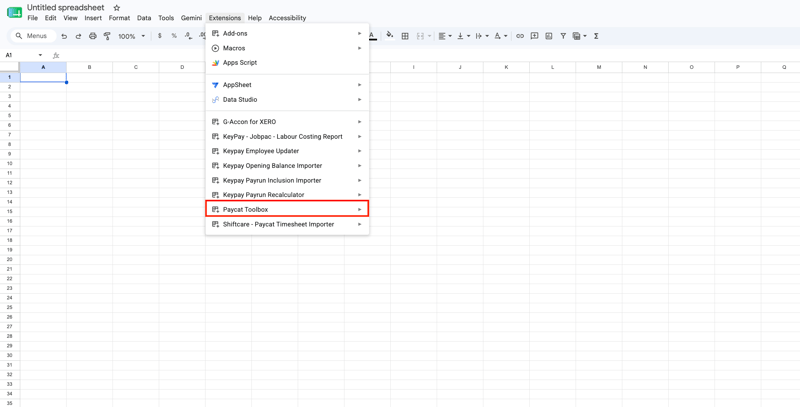
Toolbox works inside Google Sheets. Once it is connected, every tool lives under the Extensions > Pay Cat Toolbox menu.
Setup is a one-time job and takes about five minutes. You need a Google account and a Pay Cat API key with access to the business file you want to work with.
Step 1. Install Toolbox
- Open the Pay Cat Toolbox install page and click Install.
- Choose the Google account you use for work and approve the permissions.
- Open any Google Sheet. If Pay Cat Toolbox is not showing under the Extensions menu yet, refresh the sheet and give it a few seconds to load.
Step 2. Get your Pay Cat API key
You need a Pay Cat API key with access to the business file you want to work with. If you don't have one, contact Pay Cat support and we'll help you set it up.
Tip:
Treat your API key like a password. Anyone with the key can access your payroll data, so don't share it by email or save it in a shared sheet.
Step 3. Connect your business
- Go to Extensions > Pay Cat Toolbox > Pay Cat Settings > Set API Key and paste your key.
- Go to Extensions > Pay Cat Toolbox > Pay Cat Settings > Select Pay Cat Business and choose your business.
- Optional: go to Extensions > Pay Cat Toolbox > Show Read Me to see every tool listed inside your sheet.
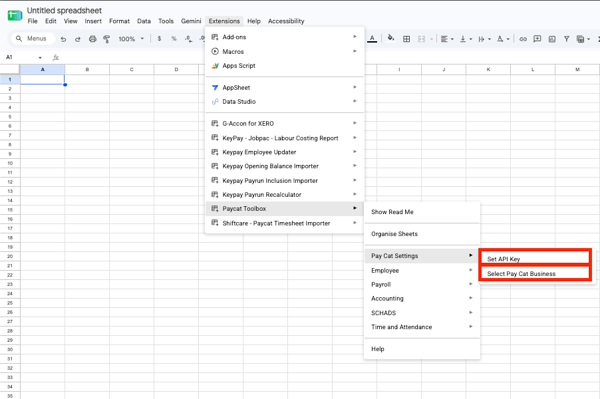
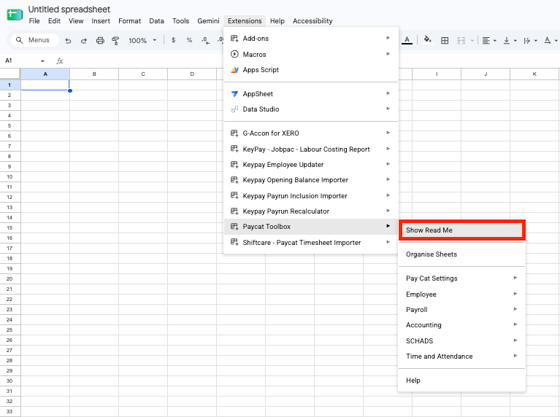
The Toolbox menu is grouped into Pay Cat Settings, Employee, Payroll, Accounting, SCHADS, Time and Attendance, and Organise Sheets. Organise Sheets groups and colour codes the tabs each tool creates, so your spreadsheet stays tidy.
Portable LSL Report
Creates your portable long service leave return in the format your state scheme needs, ready to download and upload. It covers each scheme, including NSW, Queensland (QLeave), Victoria, the ACT and South Australia, for community services and building and construction.
- Go to Extensions > Pay Cat Toolbox > Payroll > Portable LSL Report > Generate Pay Category Selection.
- Select your portable long service leave scheme and industry, then generate the selection sheet.
- Review the PLSL: Pay Categories tab and tick the pay categories to include. Your selections carry over month to month, so you only do this once.
- Go to Extensions > Pay Cat Toolbox > Payroll > Portable LSL Report > Generate Report.
- Confirm the date range, whether to include terminated employees, and the leave allowance template and earning location settings where they appear.
- Check the report, then go to File > Download and save it as Excel or CSV to upload to your scheme.
Tip:
Employees only appear in the report if they have their portable long service leave details set up in Pay Cat. If someone is missing, check their employee profile first.
Quantum of Leave Report (SCHADS)
Checks every SCHADS employee against the shiftworker rules for the extra week of annual leave, based on the weekend and 24 hour care shifts in finalised pay runs. It shows who should be on four weeks and who should be on five, so you are not over or under accruing leave.
- Make sure the right business is selected under Extensions > Pay Cat Toolbox > Pay Cat Settings > Select Pay Cat Business.
- Go to Extensions > Pay Cat Toolbox > SCHADS > Quantum of Leave Report > Run assessment.
- Review the SCHADS 5 Week AL: Action List tab for employees whose accrual needs to change.
- Track employees on five week accrual in the SCHADS 5 Week AL: Reassessment Dates tab.
Rerun the assessment regularly. An employee's entitlement can change during their leave year as their rostered weekends change. Read how the SCHADS shiftworker rule works.
Classification Report (SCHADS)
Shows the hours and days each employee has worked at each classification, to help you see when someone may be due to move up a level or pay point.
- Go to Extensions > Pay Cat Toolbox > SCHADS > Classification Report > Generate Report.
- Review the Classification: Report tab and, where it appears, the Classification: Diagnostics tab.
File Reviewer
Checks your business file for setup risks before you implement or run payroll.
- Go to Extensions > Pay Cat Toolbox > Payroll > File Reviewer > Review File.
- Select the areas you want reviewed, then click Review File.
- Start with the File Review: Summary tab, then work through any File Review: Results tabs.
- Fix anything marked as failed or please review in Pay Cat, using the links in the summary. Rerun the review to confirm.
Salaried Hours Report
Compares salaried employees' salary hours, leave and leave without pay against their contracted hours.
- Go to Extensions > Pay Cat Toolbox > Payroll > Salaried Hours Report > Generate Report.
- Choose a single pay run or a date range, then click Generate Report.
Redundancy Template
Calculates redundancy payments from age, tenure and termination details, including the tax, super and ATO reporting treatment, and can create a worksheet for HR.
- Go to Extensions > Pay Cat Toolbox > Payroll > Redundancy Template > Generate Template.
- Select the financial year, confirm whether notice was provided, enter the severance weeks and any other genuine redundancy payment, then select the employee.
- To create the HR worksheet, go to Extensions > Pay Cat Toolbox > Payroll > Redundancy Template > Generate HR Worksheet.
Wage Accrual Report
Calculates wages earned but not yet paid at month end or year end, ready for your accounting journals.
- Go to Extensions > Pay Cat Toolbox > Accounting > Wage Accrual Report > Generate Report.
- Enter the month in YYYY-MM format (for example, 2026-06).
- Review the three tabs it creates: Wage Accrual: Pay Schedule Details, Wage Accrual: Raw Report and Wage Accrual: Consolidated Report.
Employee Updater
Pulls employee data into a sheet so you can make bulk changes, then pushes them back to Pay Cat.
- Go to Extensions > Pay Cat Toolbox > Employee > Employee Updater > Open.
- Choose whether to list active employees only, tick the fields you want, and click Get Data.
- Make your changes in the Employee Updater: Data tab, then click Update Data in the Employee Updater sidebar.
- Check the Employee Updater: Log tab to confirm what changed.
Note:
If your business is connected to an Employment Hero HR file, Toolbox shows a warning before it fetches or updates anything. Employment Hero HR is the source of truth, so employee profiles should usually be updated there instead.
Tip:
Before a large update, make a copy of the spreadsheet or duplicate the data tab, so you have a record of the original values.
Timesheet Shaper
Reshapes timesheets exported from other systems into Pay Cat's import format, and flags problems such as overlapping shifts. It also handles sleepovers and kilometres.
- Go to Extensions > Pay Cat Toolbox > Time and Attendance > Timesheet Shaper > Create source sheet, then paste your timesheets into the Timesheet Shaper: Source Timesheets tab. For help, use Timesheet Shaper > Show source sheet instructions.
- Go to Timesheet Shaper > Map columns for active sheet. You must map Employee ID, plus either Start Time and End Time or one combined start and end time field.
- If your timesheets include kilometres or sleepovers, set them up under Timesheet Shaper > Settings.
- Go to Timesheet Shaper > Generate Import. This creates the Timesheet Shaper: Pay Cat Import tab with your formatted timesheets and any issues flagged.
- Once there are no issues, import the timesheets into Pay Cat using the custom file upload method.
Note:
Always review the import tab before importing. If rows are flagged, fix them in the source tab and generate the import again.
Timesheet De-Overlapper
Finds passive or sleepover time that overlaps active work in timesheets already in Pay Cat, shows you the trims, splits or deletions it would make, then applies them.
- Go to Extensions > Pay Cat Toolbox > Time and Attendance > Timesheets - Post Import > Timesheet De-Overlapper > Settings and enter the from and to dates.
- Go to Timesheet De-Overlapper > Preview De-Overlapped Timesheets. This creates the Timesheet Post Import: De-overlap Results tab.
- Check whether each passive timesheet will be updated, split or deleted.
- To apply the changes, go to Timesheet De-Overlapper > Import De-Overlapped Timesheets.
Travel Time Generator
Fills eligible gaps between shifts with travel time timesheets. It skips travel lines that already exist and never replaces existing timesheets.
- Go to Extensions > Pay Cat Toolbox > Time and Attendance > Timesheets - Post Import > Travel Time Generator > Settings and set:
- the report date range
- the work type to use for travel time
- the minimum and maximum gap, in minutes
- the location rule: First Shift Location, Last Shift Location, Employee Default Location or Selected Default Location
- the status: Approved or Submitted
- whether to only fill gaps that start and end on the same day
- Go to Travel Time Generator > Preview Travel Timesheets. This creates the Travel Time Generator: Preview tab.
- Check the preview.
- Go to Travel Time Generator > Post Travel Timesheets to create the timesheets in Pay Cat.
Tips and troubleshooting
- Check before you post. Review every preview and import tab before sending anything back to Pay Cat.
- Keep a backup. Copy the spreadsheet or duplicate the data tab before large employee updates.
- "No business selected" error? Go to Extensions > Pay Cat Toolbox > Pay Cat Settings > Select Pay Cat Business and choose your business again.
- Toolbox missing from the Extensions menu? Refresh the sheet and wait a few seconds for it to load.
- Working across more than one business? Check which business is selected before running any report.
See Toolbox in action
Join Tasya for a live walkthrough of every Toolbox report on Thursday 22 October.
Bring your questions and see how each report works, step by step.